9.2 Public User Profiles / Follow Users
Edumaps Tutorial Edumaps
1
Activate Public User Profile
-
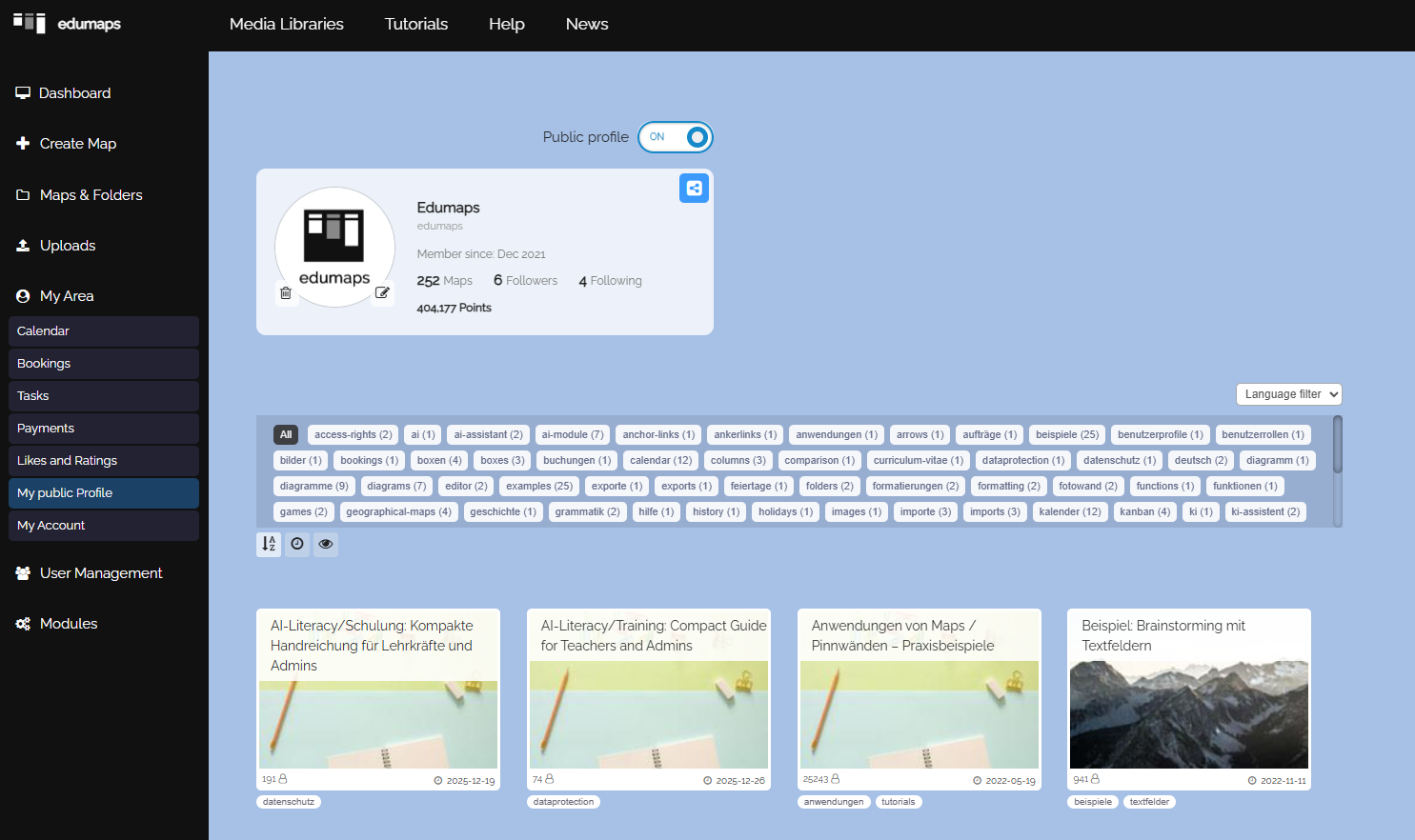
Open the sidebar, select "My Area" and then "My public Profile". Your profile page will then open.
-
The profile page is protected by default and cannot be accessed from outside.
-
If you want your profile page to be publicly discoverable, click the toggle button at the top right until it shows “ON”.
2
Link to Public Profile Page
-
If your profile page is public, you can share the link to your profile.
-
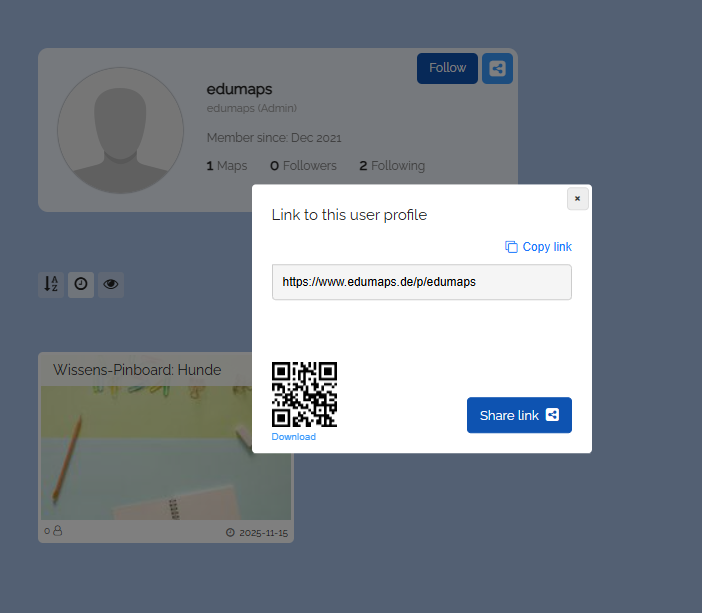
Click the blue Share button at the top right of your profile page. A dialog with the link and a QR code will appear.
-
Copy the link to your profile page and share it with your teachers/students/friends. They can now follow your profile.
-
The link to the profile page is
www.edumaps.de/p/username(where "username" is your Edumaps username). - You can also find the link to your public user profile on the page My Account.
3
Public Sharing of Maps
-
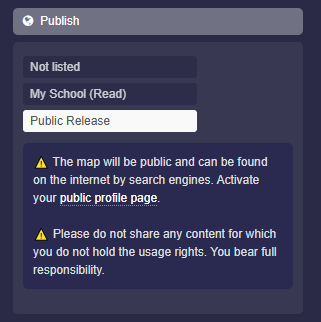
In the map settings under “Publish”, you can make the map discoverable for the entire internet.
-
Click on “Public Release” and save the map, so the map is publicly and freely accessible.
-
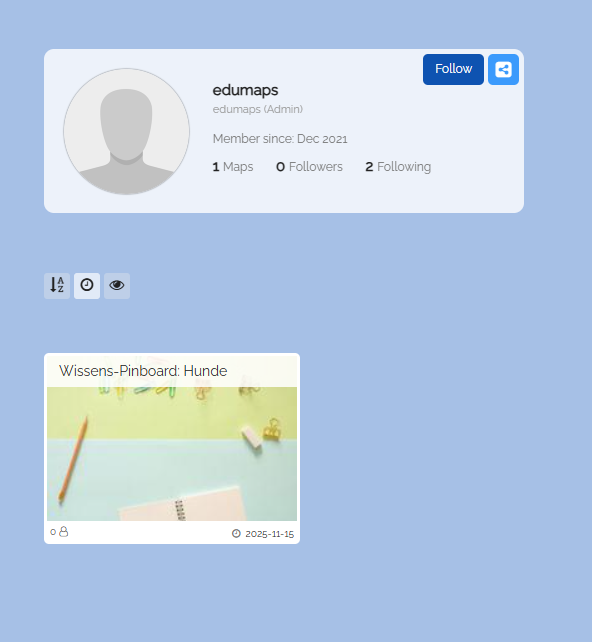
In order for your shared maps to appear on your profile page, your public profile page must also be activated.
-
⚠️ The map will be public and can be found on the internet by search engines. Activate your public profile page.
⚠️ Do not share any content for which you do not hold the usage rights. You bear full responsibility. -
As soon as you publish maps with "Public Release", these maps will appear on your profile page.
4
Follow other Users
-
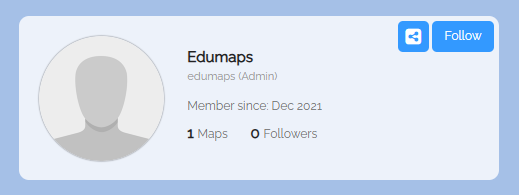
You can follow other users by clicking the “Follow” button.
-
When you follow the user, you will receive a notification if new maps are published.
- A list of all the users you are following can be found on the Users I follow page.
-
Datei „Page "Users I follow"“ wurde gelöscht.
5
Unfollow Users
-
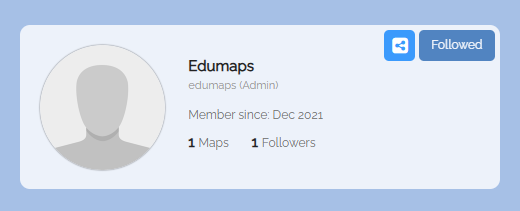
If you already follow a user, you will see the button “Followed” on their profile page.
-
Click the "Followed" button to unfollow the user.
6
Accessing the Public User Profile
-
The user profile can be accessed from the public map by clicking on the map creator's name.
-
You can see from the icon that the map creator's name is linked.